

Google Workspace
Google Workspace advanced mail routing can be used to redirect messages received by your organization's email addresses to your Fernand channel.
Open Google Admin Console and log in with your admin account.
Go to Apps > Google Workspace > Gmail, and select Default routing.
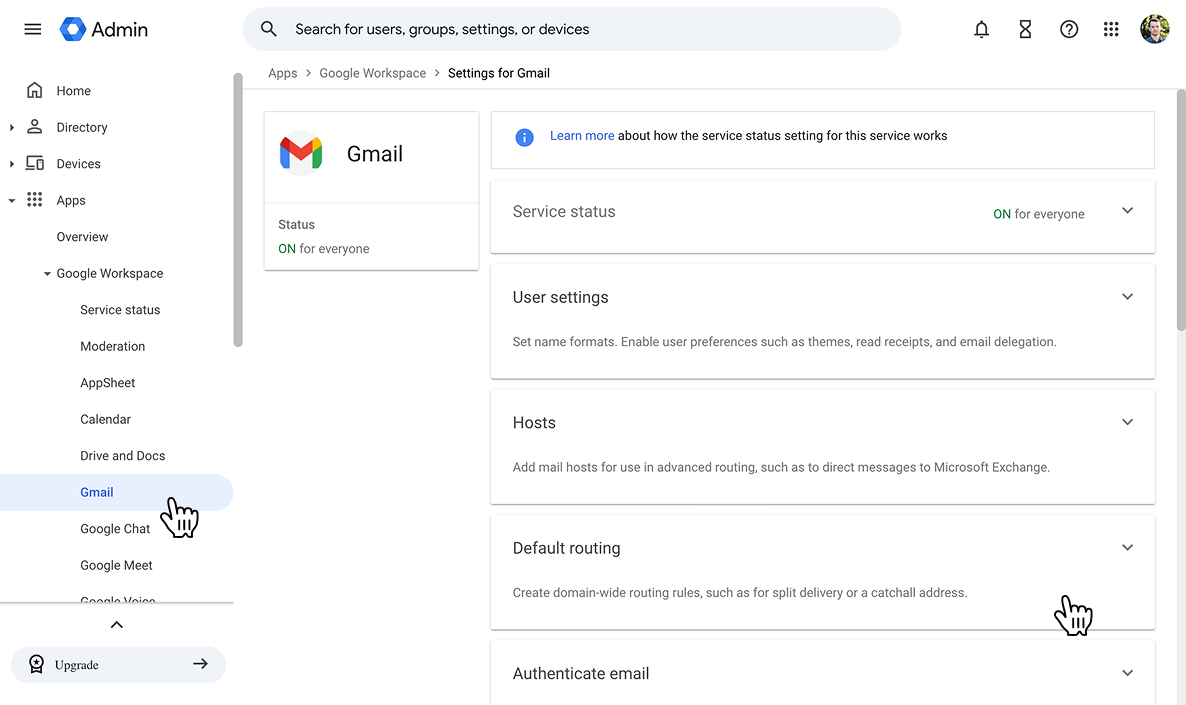
Click Configure
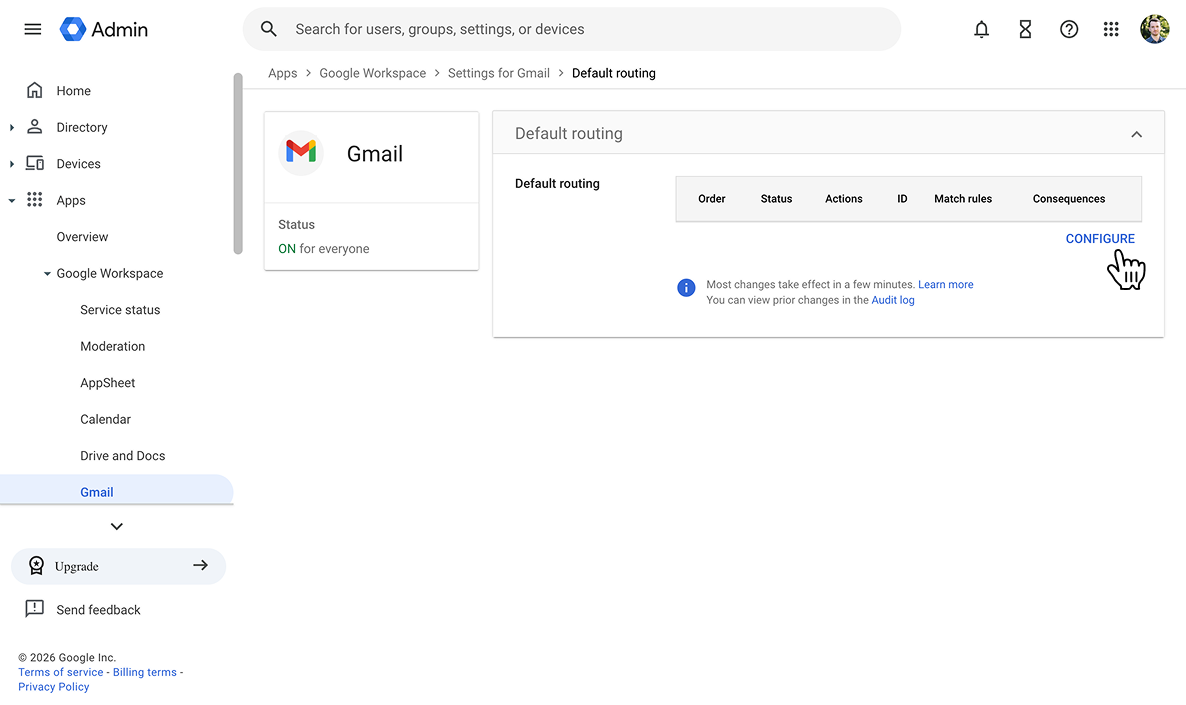
In the Specify envelope recipients to match section, select Single recipient and add:
support@piedpiper.com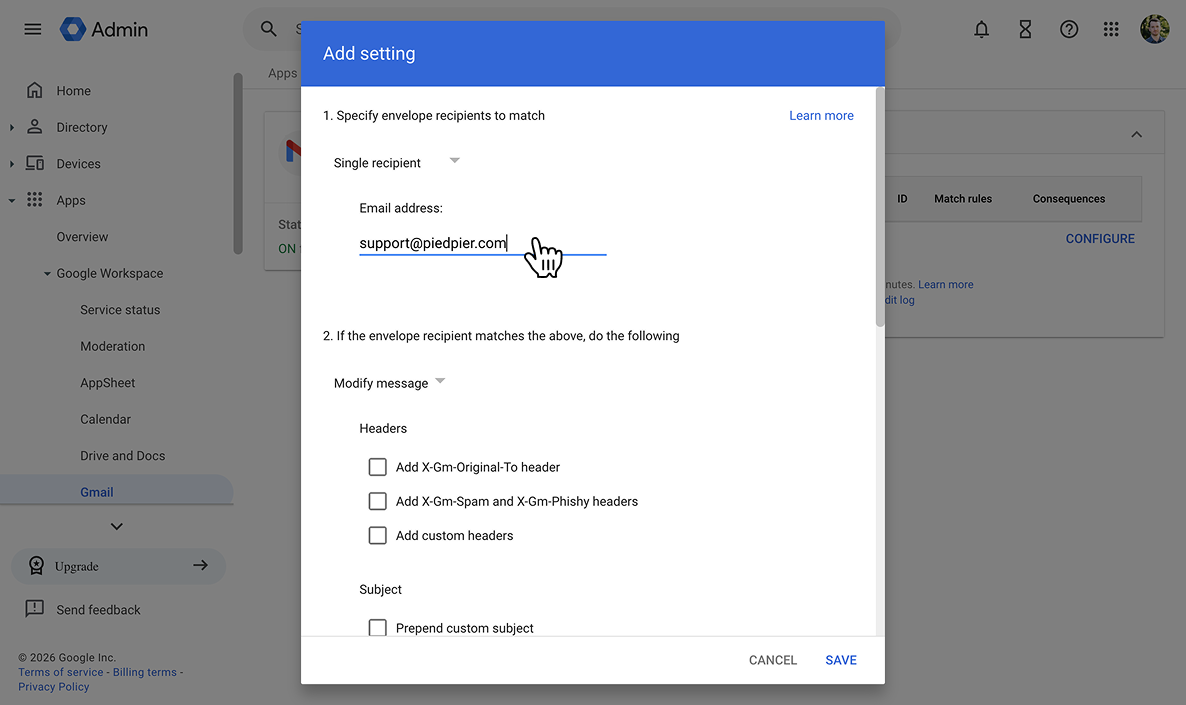
Scroll down to the Envelope Recipient option, select Change envelope recipient and input your Fernand forwarding address in the Replace recipient field
support@piedpiper.fernand-mails.com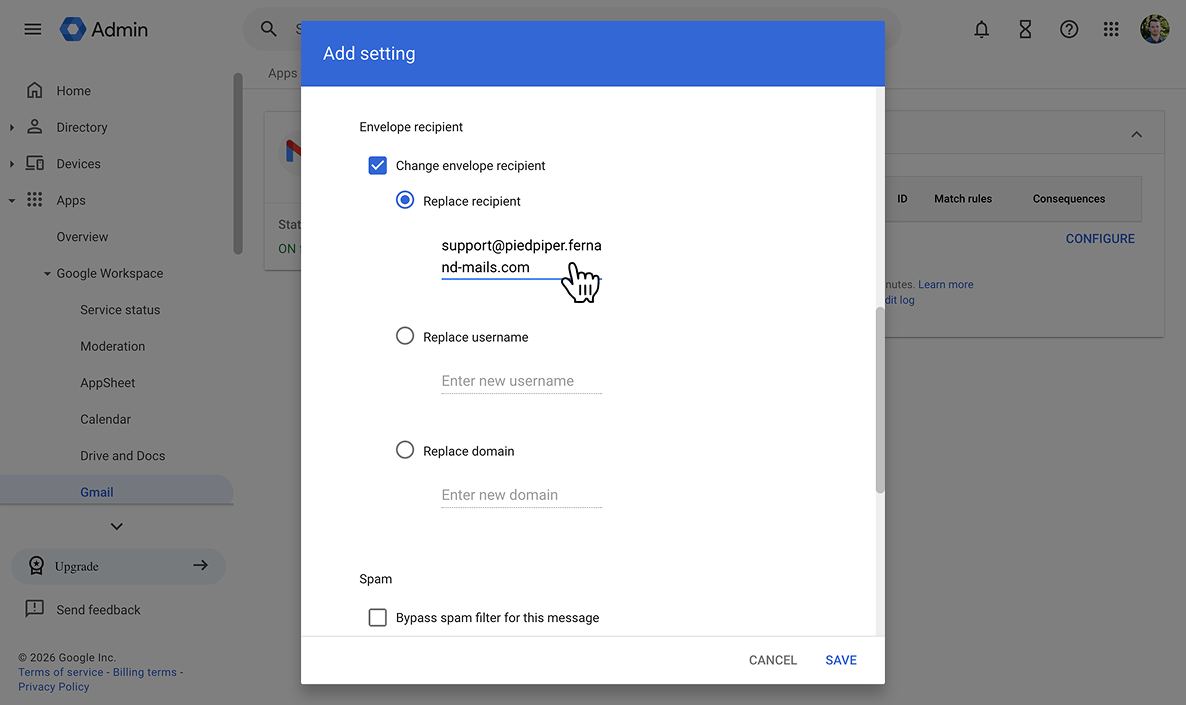
Scroll to the bottom and make sure the setting under the Options section is set to: Perform this action on non-recognized and recognized addresses.
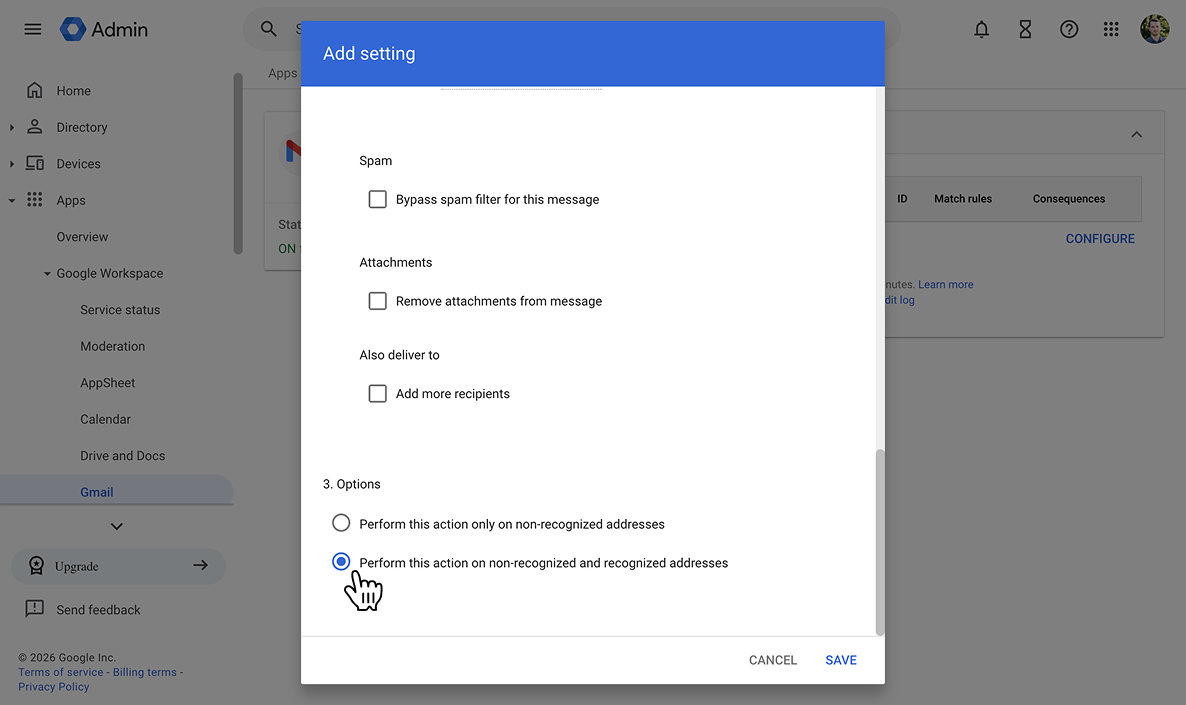
Click Save to apply this routing rule.
Send a test email to
support@piedpiper.comto confirm you receive messages properly on your new Fernand inbox.
Tips
Custom Filters: You can further customize the routing rule by adding filters for specific sender addresses, subject lines, or other criteria.
Security: Ensure that sensitive information is handled securely when setting up email redirects. The Google spam filter can be fairly aggressive. If it determines an email is spam, that email will not be forwarded in to Fernand.
Need help?
If this all feels a bit much, no worries: we’ve got you. You can book a free call and we’ll walk through it with you, step by step.