

AI triage
Rules can already match a keyword, a plan, or a language. Is about... is for the emails a keyword would miss: a bug report, a refund, a cold pitch, written a different way every time.
How it works
When a new email arrives, Fernand compares it with every live rule that uses this trigger and runs the one that fits best. If none of them is a clear match, nothing happens and the email appears in your inbox as before.
The text you type is what gets matched, not the name of the rule. Keep it to a short phrase, under a 250 character limit.
Setting up a triage rule
Go to Settings > Rules and click Add rule.
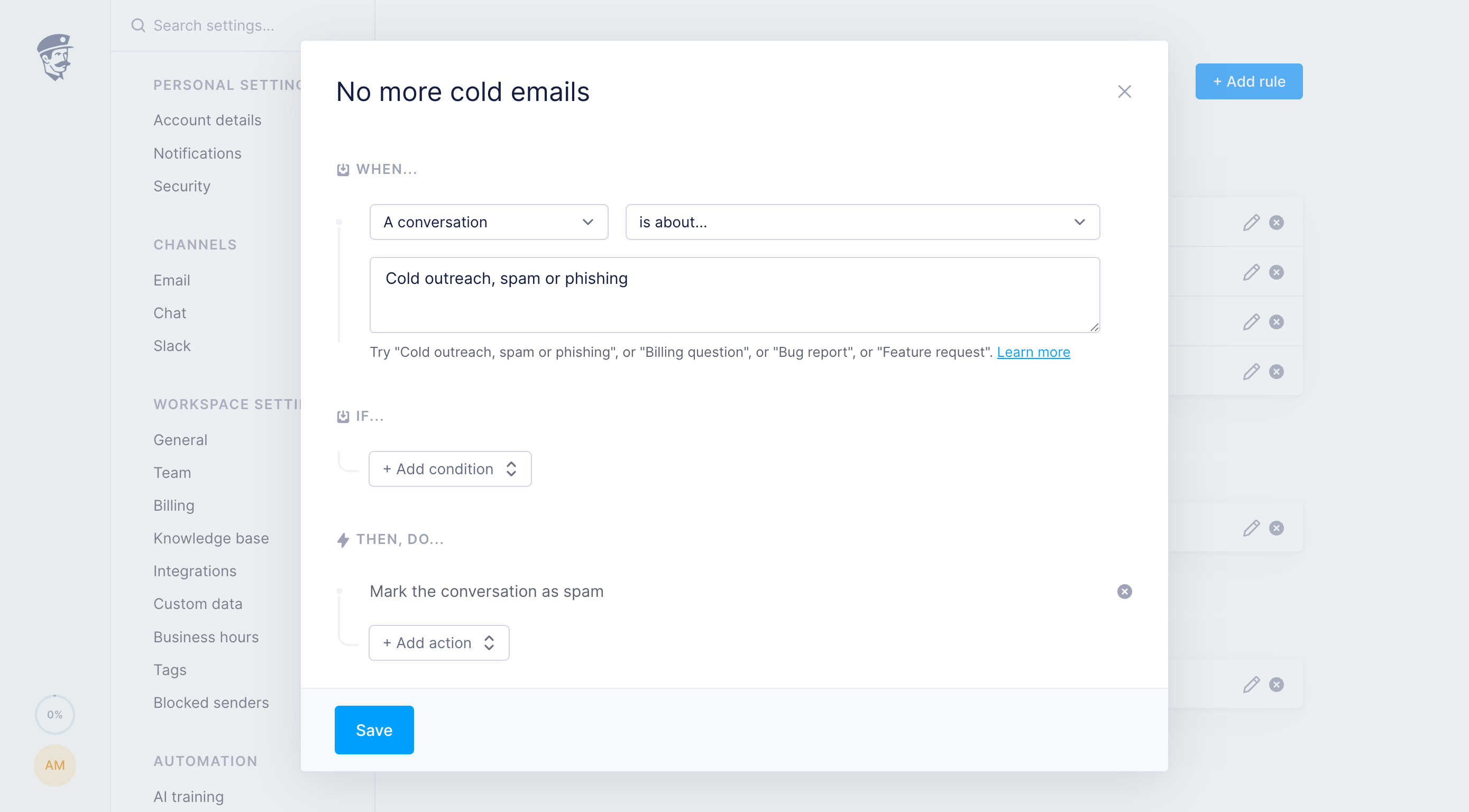
Under When, choose A conversation and is about...
Describe the email. For example:
Cold outreach, spam or phishingorBilling questionorBug report. You can come up with anything you'd like, and it will classify it automatically if the system thinks it matches it.You can add an If condition if you need to narrow it.
Paid plan,language, andbusiness hoursare the ones you'll use most.Under Then, do..., add the actions. You can add several on the same rule, and even send Webhooks to chain it to anything else in your stack.
Click Save, and you are done!
So, how to actually use this?
Cold outreach
Keep pitches, spam, and phishing out of your support queue, without catching a real customer who wrote a clumsy first email.
When: A conversation is about... "Cold outreach, spam or phishing"

If: Contact is not a customer

Then: Mark the conversation as spamA billing question
Invoices and refunds from people who actually pay you go straight to the person who handles them.
When: A conversation is about... "Billing question, invoice, or refund"

If: Contact has a paid plan

Then: Tag the conversation "Billing"Then: Assign to "Richard"
A bug report
Tag it, assign it, and open the issue in Linear or GitHub from the same rule. The webhook can post to any URL you control.
When: A conversation is about... "Bug report"

Then: Tag the conversation "Bug"

Then: Assign to GilfoyleThen: Send a Weebhook to Linear
A cancellation request
Don't auto-reply to this one, and don't close it. You want a person on it.
When: A conversation is about... "Cancellation or downgrade"

If: Contact has a paid plan

Then: Tag the conversation "Churn"Then: Assign to a founder
Then: Notify assignee
An outage
Same description, two rules. One for the day, one for the night.
When: A conversation is about... "The product is down or the API is failing"

If: During business hours

Then: Tag the conversation "Incident"Then: Notify the teamWhen: A conversation is about... "The product is down or the API is failing"
If: Outside business hours
Then: Send to Incident.io via Webhook to page oncall engineerWhat else you can do
Anything a normal rule can do still works here. A few that pair well with an intent:
Write an AI draft, for security reviews and bug reports, so your teammate edits instead of starting from scratch.
Insert a reply and close, for "where is my invoice?"
Snooze, for feature requests you batch once a week.
Forward, for job applications sent to a jobs address.
Add a note, such as "check Stripe before refunding".
Keep the descriptions distinct
Write intents the way the email actually reads. "Cannot log in or forgot password" beats "User is experiencing an authentication issue".